Reading Options
These options change this article. You can also use your browser’s zoom.
PLAYER SAFETY · 5 MIN READ
Win Bonanza Tools for Safer Social Gaming
By Sierra Ceres Player Safety Tools
Quick Answers
- Choose a stop time and optional purchase limit before play. A purchase does not improve your chances.
- Open Player Safety for Activity Reminder, Purchase Limit, Taking a Break or Self-Exclusion. Short breaks are 1, 3, 7, 14 or 30 days; self-exclusion starts at six months.
- You can ask for a firm break at any time. If play affects daily life, outside support can help too.
From Sierra’s Systems Notes
The Gauge Was Calm; the Fan Was Not
During a shift on the Ceres Garden Ring, I heard a new rattle inside a heat pump. The main gauge still showed normal operation, but a closer inspection found that one of the fan mounts had begun to loosen. The system was running; one of its parts was already asking us to stop.
We shut down the pump and secured the mount before the fan could shift far enough to damage anything around it. A normal reading is useful. It is not a complete inspection. In the same way, you do not need to wait for a serious problem before setting a limit or taking a break. Choose the level of support that fits what you need now.
Which Tool Fits Your Goal?
| Your goal | Option | Key detail |
|---|---|---|
| Stop at a set time | A personal plan and Activity Reminder | Set an alarm. The reminder pauses play but lets you stop or continue. |
| Limit optional purchases | Purchase Limit | Choose 1, 7, 14 or 30 days; further Gold Coin purchases are blocked once the limit is reached. |
| Block access for a short break | Taking a Break | 1, 3, 7, 14 or 30 days; no early reactivation. |
| Take a longer, firm break | Self-Exclusion | 6, 12, 24, 36 or 60 months; permanent exclusion through support. An active exclusion cannot be canceled or changed. |
| Close the account | Account closure | Ask about balances and records before closing. |
You do not have to start with the smallest option. If your own limit keeps changing, choose firmer support. You can also ask to close your account.
Give Your Plan a Clear Stop
Set an end time before you play. Use an alarm and choose what you will do next. Protect sleep, meals, work, and other plans. Under Activity Reminder in the Player Safety menu, you can choose 10, 30, 60, 120 or 180 minutes; the default is 60 minutes. The reminder pauses play, shows your session time and lets you stop or continue. It is a reminder, not an enforced session limit.
Choose no purchase or a fixed entertainment limit before the session. No purchase is necessary, and a purchase does not improve your chances of winning.
Stop at the chosen time whatever the game result. Our session plan guide has simple prompts to use. If the plan keeps slipping, ask for help with a stronger limit.
Set a Purchase Limit
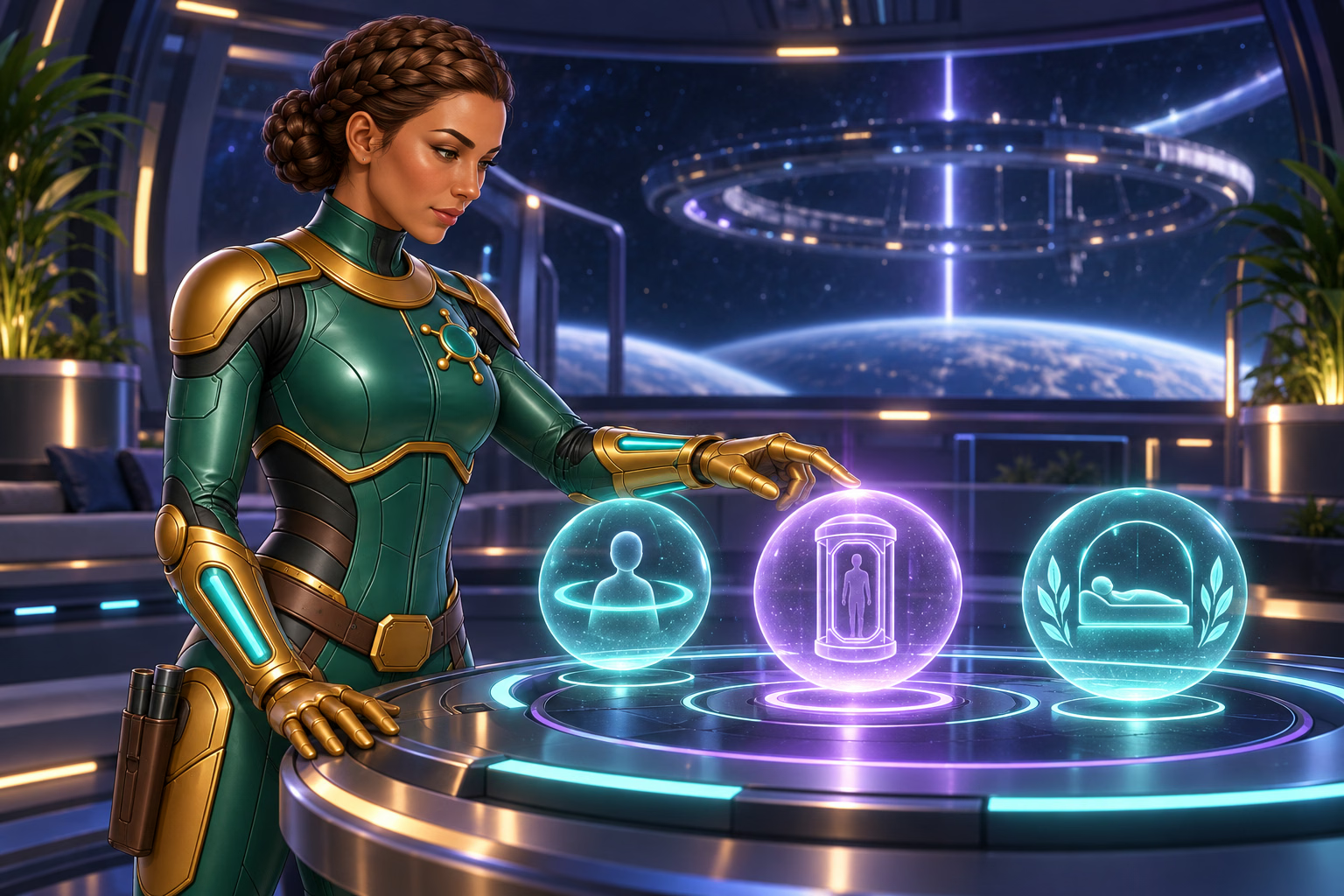
Open Purchase Limit in the Player Safety menu to set a limit on optional Gold Coin purchases for 1, 7, 14 or 30 days. Once you reach the limit, further purchases are blocked until it resets. Read the details in the Purchase Limit tab before setting it.
Decreasing the limit takes effect immediately. Increasing or removing it takes effect after a 72-hour cooling-off period. Any applicable tax is excluded from the limit. Contact Mission Control, our support team, if you need help using the control.
If a purchase limit does not give you the break you need, consider Taking a Break or Self-Exclusion.
Taking a Break Blocks Account Access
Open Taking A Break in the Player Safety menu and choose 1, 3, 7, 14 or 30 days. You cannot access your account during the selected period or reactivate it early.
Save the start and end dates outside your account. Ask Mission Control if you need help confirming the break or understanding access after it ends. The Taking a Break section does not promise that promotional messages stop; contact support separately about message preferences.
Self-Exclusion Lasts at Least Six Months
Self-Exclusion is a private choice you make. Under Self Exclusion in the Player Safety menu, choose 6, 12, 24, 36 or 60 months. Permanent self-exclusion can be requested through a support ticket. While an exclusion is active, you cannot open or use an account or win prizes, and you cannot cancel or change it.
We make our best efforts to block new or reopened accounts and stop emails and texts during a confirmed self-exclusion. Follow the steps in the Self Exclusion tab and save confirmation that the exclusion is active. Contact Mission Control if you need help or want to request permanent exclusion.
Sending a first question does not confirm that access is blocked. Check the confirmation and ask about any steps that apply after a fixed period ends. See our break comparison for the details.
Sierra’s Field Note
Let the Limit Carry Some of the Work
During a long habitat repair, the available power could not support every system at once. We shut down the systems we could pause and reserved power for air, water, and temperature control. That was not heroism. It was load management.
Once those limits were in place, a tired crew did not have to reconsider the same choices every hour. A break tool can serve the same purpose by helping an earlier decision hold when your mood changes. Before choosing one, check exactly what it blocks, when it begins, and how long it remains active.
Ask for the Control You Need
-
Choose the Limit
Say what you want to stop and for how long.
-
Confirm the Details
Review the selected period, when it starts, what it blocks and any steps that apply after it ends.
-
Keep the Confirmation
Save the confirmation and arrange support outside your account.
Account controls can help set a boundary. They do not replace professional care.
How to Request a Tool
-
- Open Player Safety in the menu. If you need help, use the Help Center or email [email protected].
- Select Activity Reminder, Purchase Limit, Taking A Break or Self Exclusion, depending on the control you need.
- Read the tool details, choose an available period and complete the steps shown. For permanent self-exclusion, submit a support ticket.
- Check what the tool blocks. Ask support separately about messages if the tool does not explain them.
- Confirm when the setting takes effect and any steps that apply after a fixed period ends.
- Save the confirmation outside your account. If you contact support, keep the case number and reply too.
For closure, use our account closure guide. Closing an account, deleting data, and stopping offers are separate requests.
Use Warning Signs as a Reason to Act
Is play taking time from sleep, work, or relationships? Are you hiding it or often changing your limits? Our Player Safety Policy has questions that can help you spot concerns. They do not diagnose a problem or tell you how much play is safe.
A trusted person, trained professional, or independent support service may help you decide what comes next. Our policy lists outside resources too.
The fan was still turning when we stopped the pump. That was the point. A machine does not need to fail completely before I switch it off, and a concern does not need to become a crisis before you take a break.
If play is affecting daily life or your limits keep moving, choose firmer support and speak with someone you trust. The rest of your day is part of the system you are protecting.
Your Next Step
Open Player Safety to choose a control. Mission Control can help if you need assistance.
Frequently Asked Questions
- Which tools can help me take a break from Win Bonanza?
-
Open Player Safety for Activity Reminder, Purchase Limit, Taking A Break or Self Exclusion. Taking a Break blocks account access for 1, 3, 7, 14 or 30 days. Self-Exclusion offers longer periods, and permanent exclusion is available through support.
- How long does Taking a Break at Win Bonanza last?
-
Choose 1, 3, 7, 14 or 30 days under Taking A Break in the Player Safety menu. Account access is blocked during the selected period, and the account cannot be reactivated early.
- How is Self-Exclusion different from Taking a Break?
-
Self-Exclusion offers 6, 12, 24, 36 or 60 months under Self Exclusion in the Player Safety menu. Permanent self-exclusion can be requested through support. An active exclusion cannot be canceled or changed. Taking a Break offers shorter periods of 1, 3, 7, 14 or 30 days.
- Do I need to keep playing before asking for a break?
-
No. You can stop and ask for support at any time. If play affects daily life or you struggle to keep your limits, outside support can help too.
Sources
Player-safety details checked September 29, 2026 against Player Safety Policy v1.1, updated September 4, 2026. Rules can change. Open the policy below for the current details.
- Win Bonanza Player Safety Policy
Activity Reminder, Purchase Limit, Taking a Break, Self-Exclusion and outside support. - Help Center: Player Safety Policy
Additional support information. Use the linked Player Safety Policy for the control names, periods and steps described in this guide. - Win Bonanza Terms and Conditions
No purchase is needed, and purchases do not improve your chances.
FROM THE EDITORIAL DESK
Trust and Transparency
Written by Ella Hartly in the voice of Sierra Ceres, a Win Bonanza Crew character.
Ella Hartly built the Win Bonanza Crew around one idea: facts help more when people enjoy reading them. Her characters use stories and humor to make hard topics easier to follow. The facts about Win Bonanza come from the sources linked above.
Win Bonanza publishes these guides about our own service. The crew’s adventures are part of our story world and are entirely fictional. Ella Hartly is the real expert behind these characters, offering her insights and expert opinion.
Win Bonanza’s editorial process calls for checking sources, claims and links before publication and when rules change. Ella Hartly’s personal opinions and game preferences do not reflect the opinions of the brand Win Bonanza.