
Reading Options
These options change this article. You can also use your browser’s zoom.
PLAYER SAFETY · 5 MIN READ
Taking a Break or Self-Exclusion: Which Do You Need?
By Sierra Ceres Taking a Break & Self-Exclusion

Quick Answers
- Taking a Break offers 1, 3, 7, 14 or 30 days without account access. You cannot reactivate your account early.
- Self-Exclusion offers 6, 12, 24, 36 or 60 months, or permanent exclusion through support. An active exclusion cannot be canceled or changed.
- Open Player Safety and select the relevant tool. Complete the steps shown and save confirmation of when the break starts.
From Sierra’s Systems Notes
Two Closed Gates, Two Different Jobs
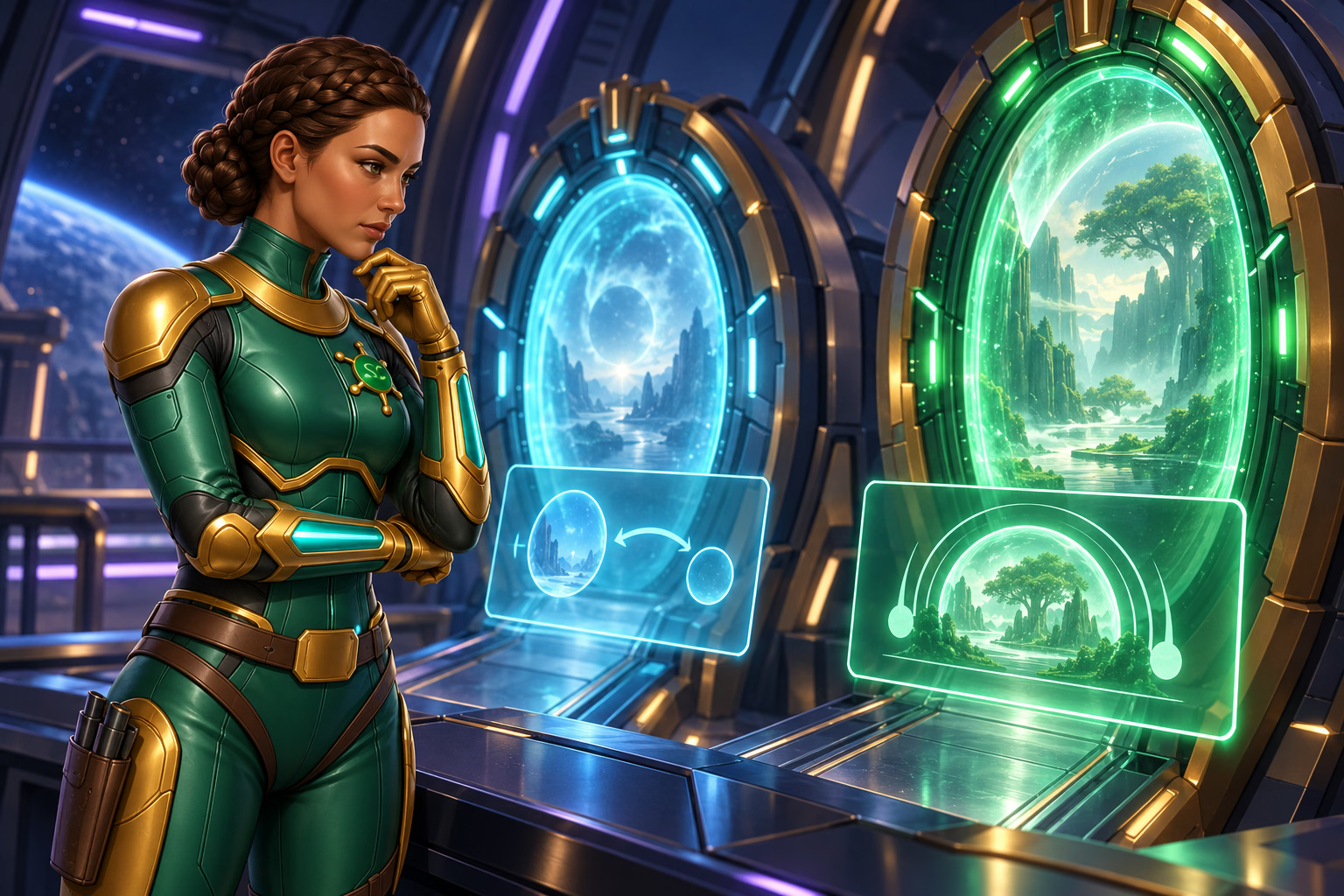
A pressure fault at the Ceres Garden Ring forced us to close two isolation gates. The first protected a healthy section while its pressure settled. We kept it closed for the planned pause.
The second gate sealed off a damaged line. That one needed to remain locked for a much longer repair.
On my control screen, both gates simply read CLOSED. Accurate, but incomplete. Both blocked access, but each served a different protection plan. Treating them as interchangeable would have been an efficient way to create another repair.
Taking a Break and Self-Exclusion both block account access, but their available periods differ. Choose the protection you need, follow the relevant menu steps and save confirmation. The September 4 policy also names Account Time-Out separately without explaining its periods or process; this guide compares the documented Taking a Break and Self-Exclusion tools.
Compare the Two Breaks
| Question | Taking a Break | Self-Exclusion |
|---|---|---|
| How long? | 1, 3, 7, 14 or 30 days | 6, 12, 24, 36 or 60 months; permanent exclusion through support |
| Can I use my account? | No; you cannot during the break | No; you cannot during the break |
| Can I end it early? | No early reactivation | No; it cannot be canceled or changed |
| What about messages? | The Taking a Break section does not promise a pause in promotional messages | We make our best efforts to stop emails and texts during confirmed self-exclusion |
| Can I win prizes? | You have no account access | You cannot win prizes during the break |
| How does access return? | Account access is blocked until the selected period ends; ask support about any return steps | Ask Mission Control about any steps after a fixed period; permanent exclusion has no scheduled end |
Our safer gaming tools guide also covers personal limits and account closure. You do not have to try each smaller step before asking for a firm break.
Taking a Break: A Shorter, Fixed Break
Under Taking A Break in the Player Safety menu, choose 1, 3, 7, 14 or 30 days. You cannot access your account during that period or reactivate it early.
Save the start and end dates outside your account. Ask Mission Control, our support team, if you need help confirming them or understanding access after the period ends. The policy does not promise that promotional messages stop during Taking a Break; ask support separately about message preferences.
Self-Exclusion: A Longer, Firm Break
Self-Exclusion is a private choice you make. Under Self Exclusion in the Player Safety menu, choose 6, 12, 24, 36 or 60 months. Permanent self-exclusion is also available through a support ticket. During an active exclusion, you cannot open or use an account or win prizes. You cannot cancel or change it.
We make our best effort to block new or reopened accounts and stop emails and texts. If a message still arrives, tell Mission Control. It does not mean you can return to play.
Follow the steps in the Self Exclusion tab and keep confirmation that the exclusion is active. For permanent self-exclusion, submit a support ticket. Contact Mission Control if you need help. A first message asking about a break is not the same as a confirmed start.
Choose the Support You Need
Consider Taking a Break for a short block. Consider Self-Exclusion for a much longer or permanent break. Do not choose either one expecting to end it early.
Think about why you want a break. Do you keep changing your stop time? Is play taking time from sleep, work, or people you care about? You can ask for support before a problem gets worse.
If you want to close the account, use the separate account closure process. It has its own rules for balances and records. If you only want to stop offers, ask for a message opt-out.
Sierra’s Field Note
Let the Quiet Period Work
While the gates were closed, a rare vine in the affected section also needed time to recover from the pressure change. Its care log called for an uninterrupted quiet period.
At first, I kept checking its status light. The same reading appeared every time. Nothing seemed to be happening because nothing was supposed to happen. Rest was the active part of the plan.
A break does not need to produce a daily result to be useful. Save the confirmation somewhere outside your account, then give your attention to the people, routines, and activities beyond it. Let the quiet period do its job.
Put Your Break in Place
-
Choose the Break
Pick the tool and length of time that fit the protection you need.
-
Confirm the Dates
Complete the steps shown. Confirm when the break starts and what access it blocks.
-
Plan Your Support
Save the confirmation. Arrange other activities or outside help during the break.
Taking a Break does not allow early reactivation. An active Self-Exclusion cannot be canceled or changed.
How to Ask for a Break
- Open Player Safety from the menu.
- Select Taking A Break or Self Exclusion.
- Choose one of the periods offered by that tool.
- Read the details and complete the steps shown. Submit a support ticket if you want permanent self-exclusion.
- Check confirmation of when the break begins and, for a fixed period, when it ends. Ask Mission Control if anything is unclear.
- Ask support about any steps after a fixed period and any questions about messages.
- Save the confirmation outside your account, along with the case number if you contact support.
Our support guide helps you write the request. Never send a password or one-time code to start a break.
Build Support Around the Break
At the Ceres Garden Ring, both gates stayed closed for the protection each section needed. Neither gate had failed by staying closed. A short pause and a longer repair served different purposes.
Choose the break that fits the protection you need, complete the required steps, and confirm when it begins. Do not open another account, borrow someone else’s login, or try to bypass the block.
A protective control can only do its job when you let it remain in place.
Your Next Step
Open Player Safety, choose your break and confirm when it starts.
Frequently Asked Questions
- What is the difference between Taking a Break and Self-Exclusion?
-
Taking a Break offers 1, 3, 7, 14 or 30 days. Self-Exclusion offers 6, 12, 24, 36 or 60 months, or permanent exclusion through support. Both block account access. Taking a Break does not allow early reactivation, and an active Self-Exclusion cannot be canceled or changed.
- Can I end Taking a Break at Win Bonanza early?
-
No. Account access is blocked during the selected period, and the account cannot be reactivated before that period ends.
- Can I cancel or change Self-Exclusion?
-
No. An active Self-Exclusion cannot be canceled or changed. Select 6, 12, 24, 36 or 60 months under Self Exclusion in the Player Safety menu, or request permanent exclusion through a support ticket.
- How do I know my break is active?
-
Complete the steps in the relevant Player Safety tool and save confirmation of the start date. If you need help or request permanent self-exclusion, keep the support reply confirming it is active. Sending a first question about a break is not the same as a confirmed start.
Sources
Player-safety details checked September 29, 2026 against Player Safety Policy v1.1, updated September 4, 2026. Rules can change. Open the policy below for the current details.
- Win Bonanza Player Safety Policy
How breaks block access, how long they last, and what happens to messages. - Help Center: Player Safety Policy
Additional support information. Use the linked Player Safety Policy for the control names, periods and steps described in this guide. - Win Bonanza Terms and Conditions
Keeping your account personal and following account limits.
FROM THE EDITORIAL DESK
Trust and Transparency
Written by Ella Hartly in the voice of Sierra Ceres, a Win Bonanza Crew character.
Ella Hartly built the Win Bonanza Crew around one idea: facts help more when people enjoy reading them. Her characters use stories and humor to make hard topics easier to follow. The facts about Win Bonanza come from the sources linked above.
Win Bonanza publishes these guides about our own service. The crew’s adventures are part of our story world and are entirely fictional. Ella Hartly is the real expert behind these characters, offering her insights and expert opinion.
Win Bonanza’s editorial process calls for checking sources, claims and links before publication and when rules change. Ella Hartly’s personal opinions and game preferences do not reflect the opinions of the brand Win Bonanza.