
Reading Options
These options change this article. You can also use your browser’s zoom.
ACCOUNTS · 5 MIN READ
How to Keep Your Account Safe on a Shared Device
By Sierra Ceres Shared Device Safety
Quick Answers
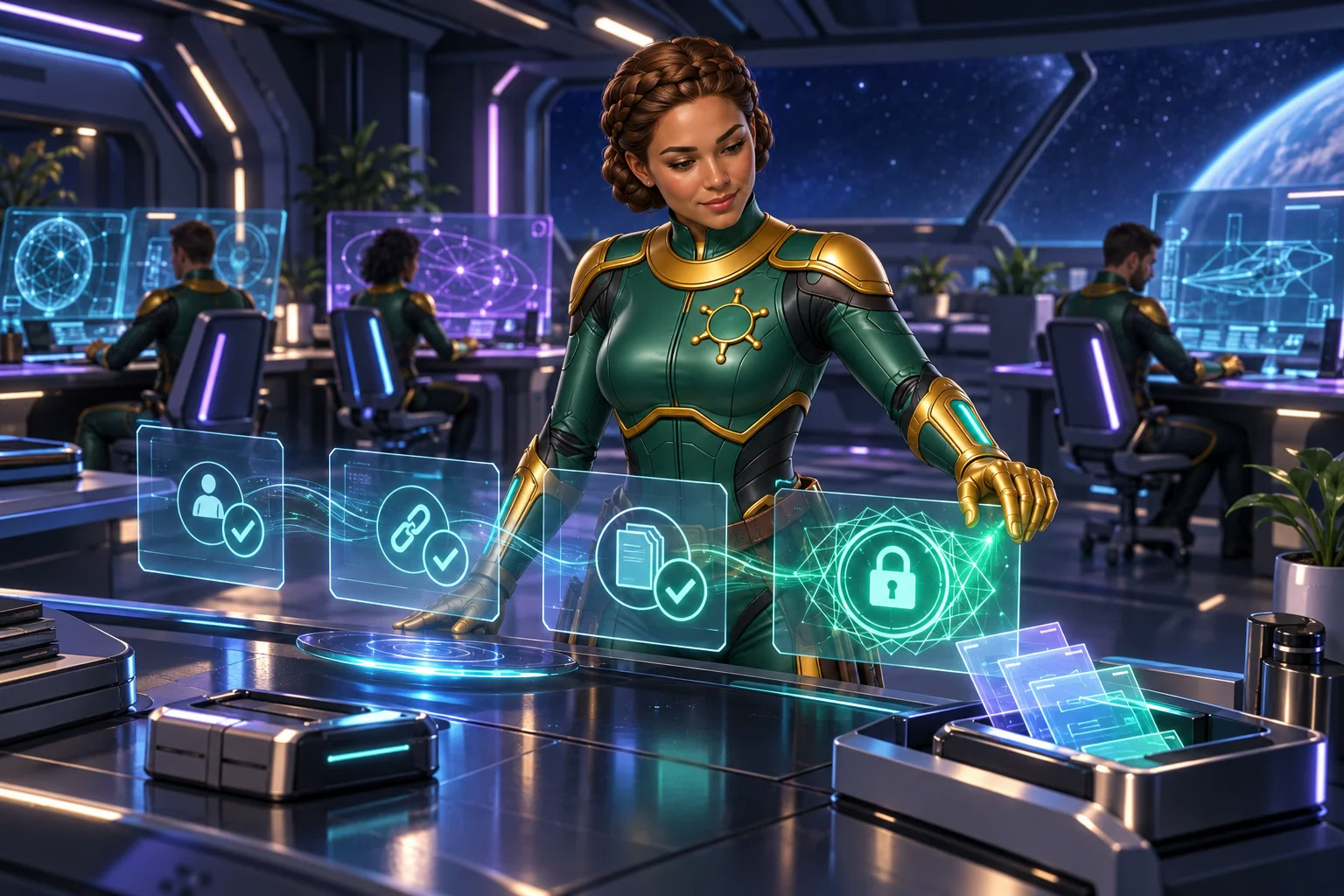
- Sign out of Win Bonanza, check private downloads, and lock the device before someone else uses it.
- A separate browser profile does not always block other people from your saved logins.
- Protect your email, password manager, and phone codes as well as your Win Bonanza password.
From Sierra’s Systems Notes
The Tab I Left Behind
After a long Wayfinder shift, I closed the main screen and handed the shared console to the next crewmate. I thought I was finished. She found another browser tab still signed in under my name, with my private files one click away, and left me a note: “You are still signed in.”
I added signing out to my handoff checklist that night. Closing a screen can hide an account without ending its session. On a shared device, the handoff is not complete until your account and private files are out of the next person’s reach.
Keep Your Account for Your Use
We allow one Win Bonanza account per person. Keep your login details private and your account details correct. Letting someone play through your open account still gives them access, even if you never share the password.
Do not use another person’s account if yours is unavailable. Our account safety guide covers passwords and recovery too.
Before you sign in, check who can unlock the device. Is your own browser profile open? Could someone reach your email or password manager? Those questions help you spot access you might overlook.
Check What Might Stay Open
| Place | What to check |
|---|---|
| Browser | Sign out. Do not save passwords in a shared profile. |
| Sign out so others cannot use password-reset links. | |
| Phone screen | Lock it and hide private message previews. |
| Downloads and photos | Move needed files to private storage. Remove extra copies. |
| Password manager | Lock it before you leave. |
| Autofill | Keep saved addresses and purchase details out of shared profiles. |
These are general device steps. The exact options depend on your phone, computer, browser, email service, and password manager.
Use a Separate, Locked Device Account
If the device allows it, give each adult their own device login and lock. Set it to lock after a short idle period. Lock it yourself when you leave.
A browser profile can keep bookmarks and history separate. It does not always keep people out. Someone using the device can switch between Chrome profiles. A different profile picture is not a lock.
Avoid saving your Win Bonanza password or choosing to stay signed in on a shared browser. Check browser sync too. It can copy passwords and history to another linked account.
Use This Five-Step Handoff
-
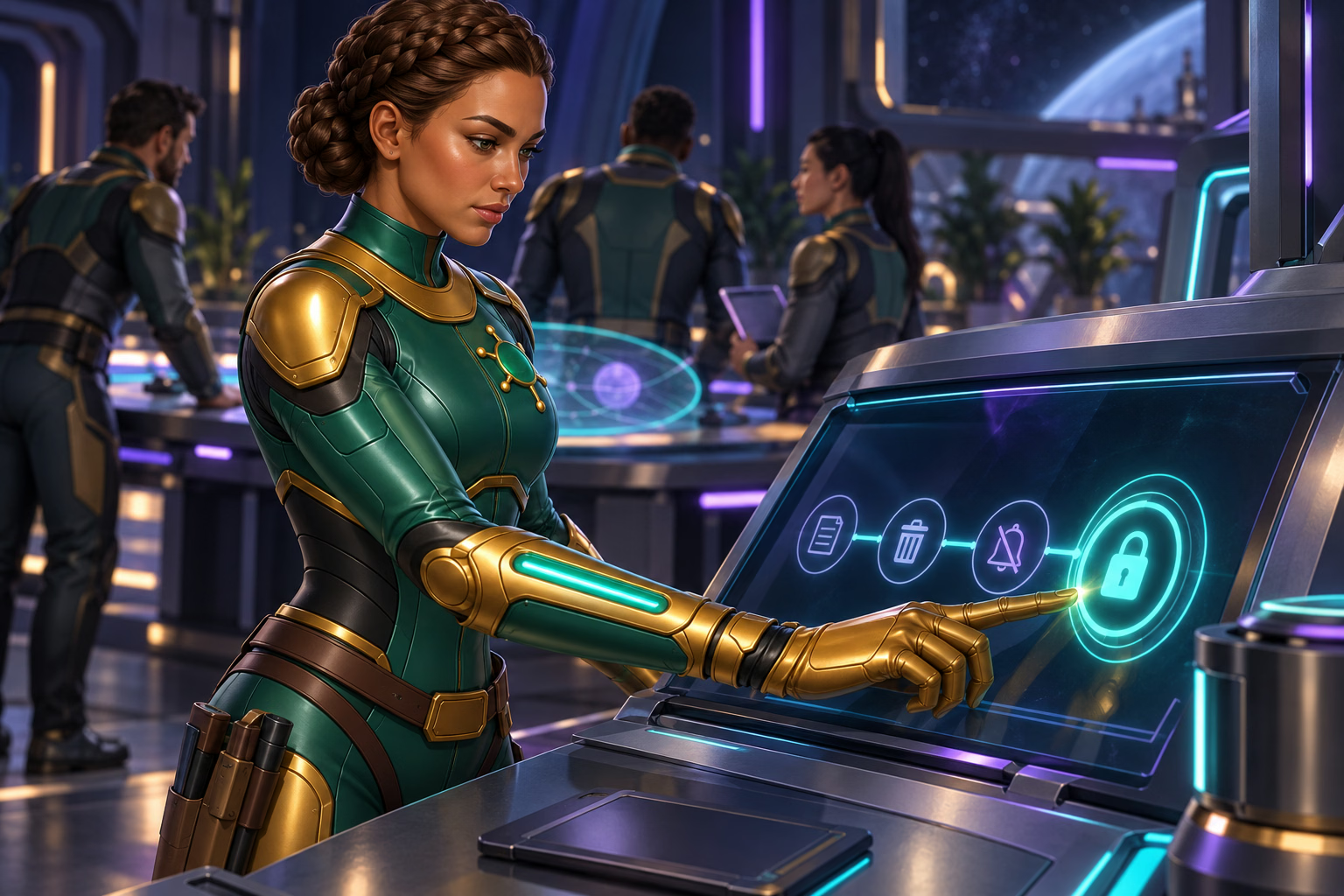
- Sign out of Win Bonanza. Closing a tab may leave the account signed in.
- Close related pages. Include email, support, account checks, cloud files, and linked logins.
- Check downloads. Keep needed records in private storage and remove extra copies.
- Lock saved access. Lock the password manager and check phone previews and autofill.
- Lock your device account. Do it before the next person takes over.
In Chrome, close every Incognito window to end that private browsing session. Downloaded files still stay on the device. Private browsing also does not hide your activity from the sites you visit. The group running a work or public network may still see activity too.
A private window does not make an unknown computer safe for private files.
Finish Safely on a Shared Device
-
Sign Out
Sign out of your account. Close any related email, support, and verification pages.
-
Check Private Files
Save records you need in a safe place. Remove private downloads and screenshots you no longer need.
-
Lock Up
Lock the password manager and device account before you hand over the device.
Browser profiles and private windows do not make an untrusted device safe.
Sierra’s Field Note
Keep the Routine Short
After that note, I could have built a twenty-step console inspection process. I settled on three steps:
- Sign out
- Check for private files
- Lock the device
I still follow that order: session, files, lock. If someone regularly misses a step, add a visible reminder, or move private tasks to a personal device.
Save Private Tasks for a Trusted Device
You may not know what software runs on a public, work, or borrowed device. When possible, use a trusted personal device for ID uploads, bank files, password changes, and account recovery.
Do not install remote-control software because an unknown “support” contact asks. Do not share your screen while private files, codes, or passwords are visible. Our scam guide explains how to check the request.
What If Someone May Have Used Your Account?
Sign out and stop any screen sharing or remote access. From a trusted device, protect your email and change exposed passwords. Check for unknown logins and recovery changes where the service offers those options.
Save what you can see: dates, alerts, changed details, and account activity. Do not guess who used it. Tell Mission Control through our Help Center. The support checklist helps you write the report.
That note fixed more than the open tab. It fixed my handoff. Now I sign out, check for open or downloaded files, and lock the console before I leave. The next crewmate gets a clear station, my account stays private, and I have not needed a second note.
Your Next Step
Tell us if someone may have used your account on a shared device.
Frequently Asked Questions
- Is closing the browser enough to protect my account?
-
Use Sign out before handing over a device. Also check saved logins, open email and private downloads, then lock the device. A closed window is not a complete handoff routine.
- Does a separate browser profile keep my account private?
-
Not always. Another person using the device may still reach saved logins. Use a separate, locked device account and protect your email and password manager too.
- Should I upload ID documents on a borrowed device?
-
Save private tasks for a trusted device when possible. Shared devices can keep downloaded files or login details where someone else may reach them.
- What if someone may have used my account on a shared device?
-
Secure your account and email from a trusted device, then contact support. Explain what happened and keep useful records without sharing passwords or one-time codes.
Sources
Sources checked September 8, 2026. Rules and offers can change. Open the links below to read the full details.
- Win Bonanza Terms and Conditions
Keeping your account personal, protecting your login, and using one account. - Win Bonanza Privacy Policy
Private data and where to report a concern. - FTC: Creating Strong Passwords and Other Ways To Protect Your Accounts
Password managers and protecting the email used for account recovery. - Google Chrome Help: Manage Chrome With Multiple Profiles
Why another device user can switch Chrome profiles. - Google Chrome Help: Browse in Incognito Mode
Closing all private windows and keeping downloaded files safe. - Win Bonanza Help Center
Where to ask for account help.
FROM THE EDITORIAL DESK
Trust and Transparency
Written by Ella Hartly in the voice of Sierra Ceres, a Win Bonanza Crew character.
Ella Hartly built the Win Bonanza Crew around one idea: facts help more when people enjoy reading them. Her characters use stories and humor to make hard topics easier to follow. The facts about Win Bonanza come from the sources linked above.
Win Bonanza publishes these guides about our own service. The crew’s adventures are part of our story world and are entirely fictional. Ella Hartly is the real expert behind these characters, offering her insights and expert opinion.
Win Bonanza’s editorial process calls for checking sources, claims and links before publication and when rules change. Ella Hartly’s personal opinions and game preferences do not reflect the opinions of the brand Win Bonanza.